This is a practical guide to SSH tunnels - Local and Remote Port Forwarding. This captures my learnings and realizations about the things I could do, or could've done, over the course of owning my self-hosted setup.
My self-hosted setup is pretty minimal right now. I own a personal VPS through Oracle, where I self-hosted a couple of applications. I do use my stack very often though, and it has made a meaningful difference in the way I use software, and made me a better developer in the process.
The main mechanism to converse with my server has been SSH (Secure Shell). SSH is a multiplexed, encrypted, bidirectional pipe between two machines. Simply put, SSH is a protocol used for logging into a remote machine over a network. Before SSH, people used Telnet, which sent everything (including confidential information, like passwords) as plain text. Anyone watching the network traffic could read it. SSH wraps everything in encryption.
When you type:
ssh ubuntu@132.145.149.218
- Local machine opens a TCP connection to port 22 on
132.145.149.218. - Both sides do a cryptographic handshake. They agree on encryption keys without ever sending those keys as plain text (Diffie-Hellman).
- You get an encrypted shell. Whatever you type, goes over to the remote machine and executes there.
So SSH is fundamentally just an encrypted pipe between two machines, with the terminal on one side (usually) and a shell on the other.
An obvious part of hosting a remote server is the ability to interact with the remote machine from the local machine and vice versa. SSH enables that ability for authenticated users to control devices over the network. SSH as mentioned, creates a single, encrypted bidirectional pipe between two machines. However, the processes running on each server, don't know what SSH is, and therefore, cannot send data over the common pipe as a means to communicate. SSH's "tunneling" features just allow users to modify what information really travels through the pipe.
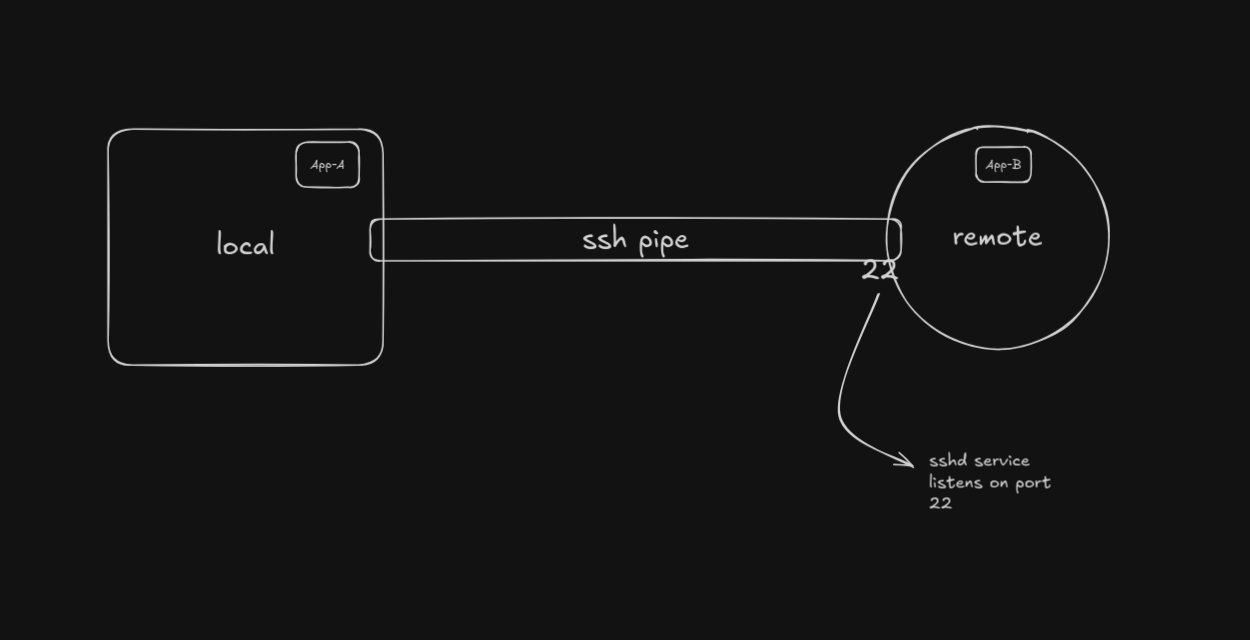
Let's say App-A on the local machine wants to communicate with App-B on the remote machine. Theoretically, it should be possible now that we have a data-transfer mechanism between the two. But as-is, the local application doesn't know what SSH is. Curl, postgres client, browser, they only know TCP. They need a plain local address to connect to. Similarly, if App-B wants to access services of App-A, it'd need a plain local address to connect to, since it doesn't inherently understand SSH.
Technically, one could use a network address for connect to remote services, but that'd require creating a new SSH connection - each with it's new credentials, keys, passwords. You'd be establishing full SSH handshakes just to send individual requests. It is expensive and extremely wasteful.
Solution is Port Forwarding, and the literal meaning makes sense now.
- Local Port Forwarding: forwards a local port to the SSH pipe
- Remote Port Forwarding: forwards a remote port to the SSH pipe
(forward just means to pass-over data: requests and responses)
The Network Topology
To understand the full extent of capabilities provided by port forwarding, it's helpful to understand the different networks and attached hosts that'd come into play when you perform port forwarding. These hosts are:
- Internal - a device on the home network
- Local - your workstation. This sits on both the home network and public internet
- Remote - the remote workstation (server, gateway, router, etc). This sits on both the private VPC network and the public internet.
- Private - a device on the Remote host's private VPC (a database, for example).
(Refer to the sections below for a refresher on ports, networks and the need and utility of private networks, since it'll be useful later for understanding port forwarding)
What a Network actually is
Every computer has a network interface - a piece of hardware that can send and receive electrical signals (and radio waves for WiFi). A network is just a bunch of machines with network interfaces connected together so they can exchange those signals.
Every machine on a network gets an IP Address - a unique number that identifies and locates the machine. (IPs conflate identity and location, which consumes a lot of engineering effort to work around. Iroh is a up-and-coming paradigm that aims to resolve this discrepancy). It works like a postal address. When machine A wants to send data to machine B, it marks the data with B's address and sends it out onto the network. Routers in between read the label and forwards it towards B.
What a port actually is
A machine runs several processes simultaneously - a Spotify client, Web Browser, maybe a local server. When data arrives at a machine, which process should receive it? Ports solve this.
Each process that wants to receive network data binds to a port. It's a number between 1 and 65535. When machine A sends data to machine B, it specifies both an IP (which machines to send data to) and a Port (which program on that machine should receive the data).
A full address on the internet is IP:Port. A server at 203.0.113.30:80 means the server is listening on port 80 on that IP.
Why private networks exist and why they matter
Internet has a finite number of public IP addresses (about 4 billion in IPv4). These aren't enough for every device in the world to have one. And even if they were, you wouldn't want your home printer, or internal database to have a public IP, and by extension, be reachable by anyone over the internet.
So we use private networks. The home router, a company's VPS, Amazon's VPCs are all private networks. Each device on a private network gets assigned a private IP, such as 192.168.x.x, which is not routable on the public internet. The main remote server or cloud provider acts as a gatekeeper, it has a public IP and all the "sensitive" machines hide behind it.
As a consequence, private IPs are not reachable over the internet. The internet's routers don't know what to do with that address, since it's private, and so the data goes nowhere.
Putting it all together
You want to query the database located in a remote's private VPC network, from your laptop. But the database does not have a public IP, and is unreachable over the internet. The laptop cannot just "query" it.
However, the remote can access the database directly, it's in the same private network. And the laptop can access the remote, through SSH. We can "convince" the SSH pipe to also carry database traffic (SSH internally uses the concept of channels - multiple logical streams multiplexed over the same TCP connection). Laptop talks to the SSH pipe, SSH pipe comes out of the remote server, the remote server forwards database queries to the private database server. That is a tunnel. We're using the encrypted SSH connection as a passageway through a network boundary to access private services we otherwise wouldn't have access to.
Local Forwarding (-L)
Local is the one that opens the port. Oftentimes, there might be a service listening on localhost or private interface of a remote machine that you desperately need access to. A few examples could be:
- Using a browser to access a web application exposed only to a private network
- Accessing a database server (Postgres, MySQL, Redis) hosted on a private network using your favorite local database client.
- Accessing a container running on the remote without exposing it over the public internet.
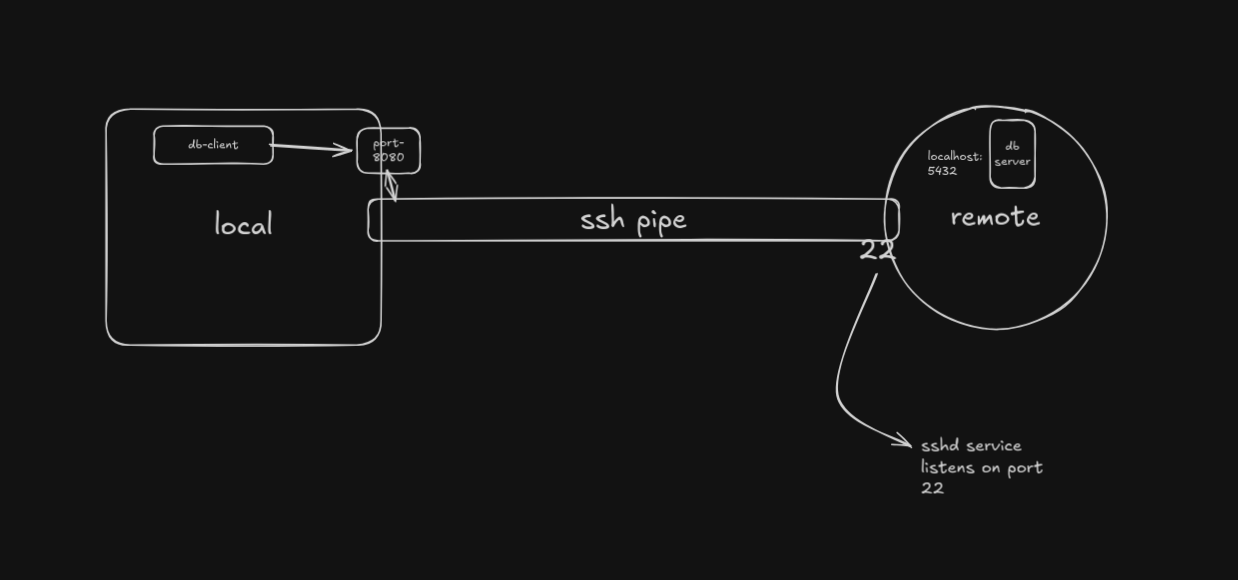
ssh -L 8080:localhost:5432 ubuntu@132.145.149.218
This tells the SSH client to open port 8080 on the local machine and anything that connects to it, gets sent over the SSH pipe to remote running on public IP 132.145.149.218, which then forwards it to the database server running on the remote host at localhost:5432.
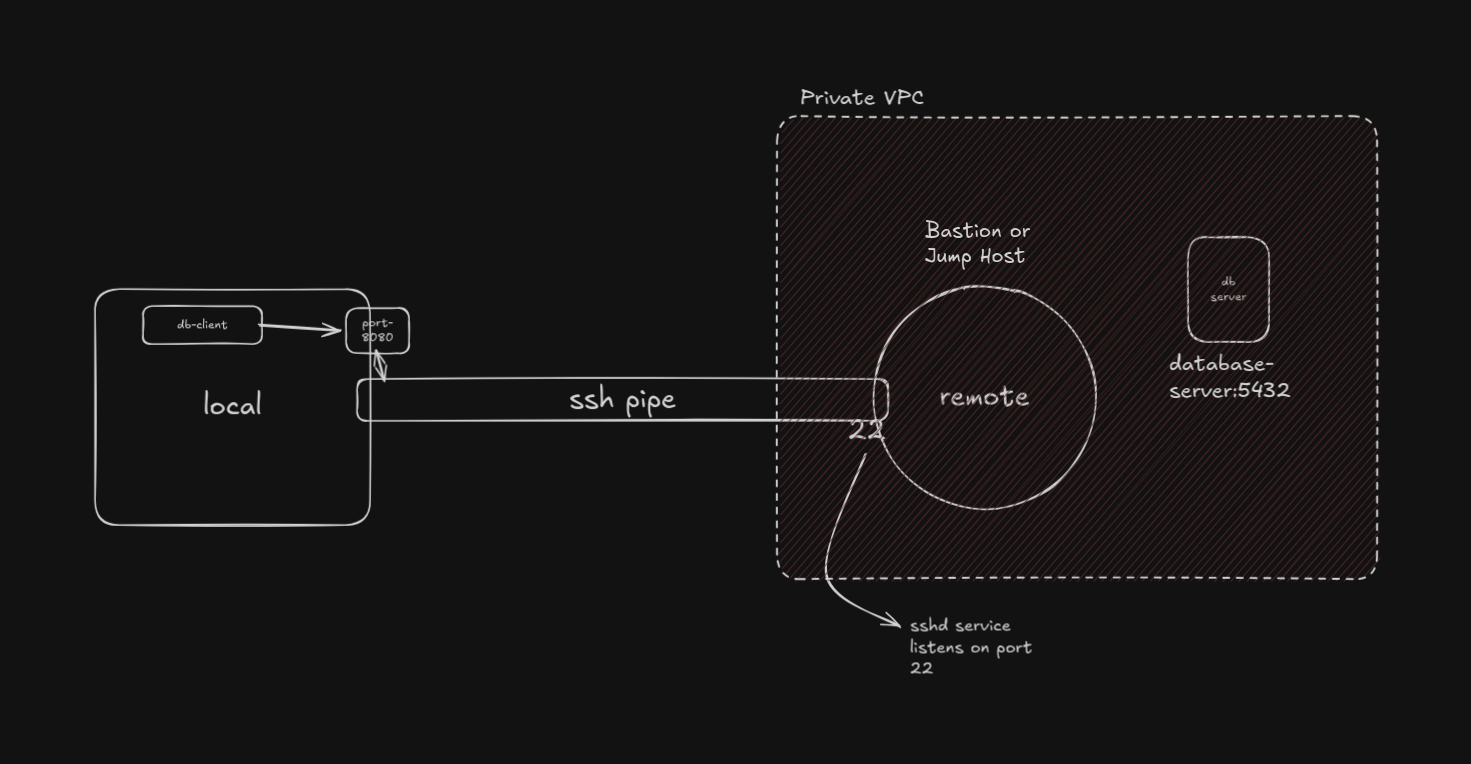
It forward the local port to not just any service running on the remote host itself, but also to any private machines in the remote's private network. In this case, the remote host becomes a Bastion or Jump Host, and it is called Local Port Forwarding with a Bastion Host.
ssh -L 8080:database-server:5432 ubuntu@132.145.149.218
The bastian or jump host opens a second TCP connection to the private server. You never talk directly to the VPC node, the remote acts as a relay.
Tip: Use ssh -f -N -L to run the port-forwarding session in the background.
Remote Port Forwarding
Remote is the one that opens the port. Oftentimes, you'd like to expose local services running on your computer over to the public internet. However, since those services are running on a private network (either localhost - 127.0.0.1, or on the home network - printers, raspberry pi, smart home gadgets), they do not have a public IP and are not exposed on the internet. Sometimes you'd temporarily like to access them for a quick demo, or when you're away and not connected to your home network.
ssh -R 8080:localhost:3000 ubuntu@132.145.149.218
This tells the sshd daemon on the remote host at 132.145.149.218 to open port 8080, and send all the data to the service listening at local machine's localhost:3000.
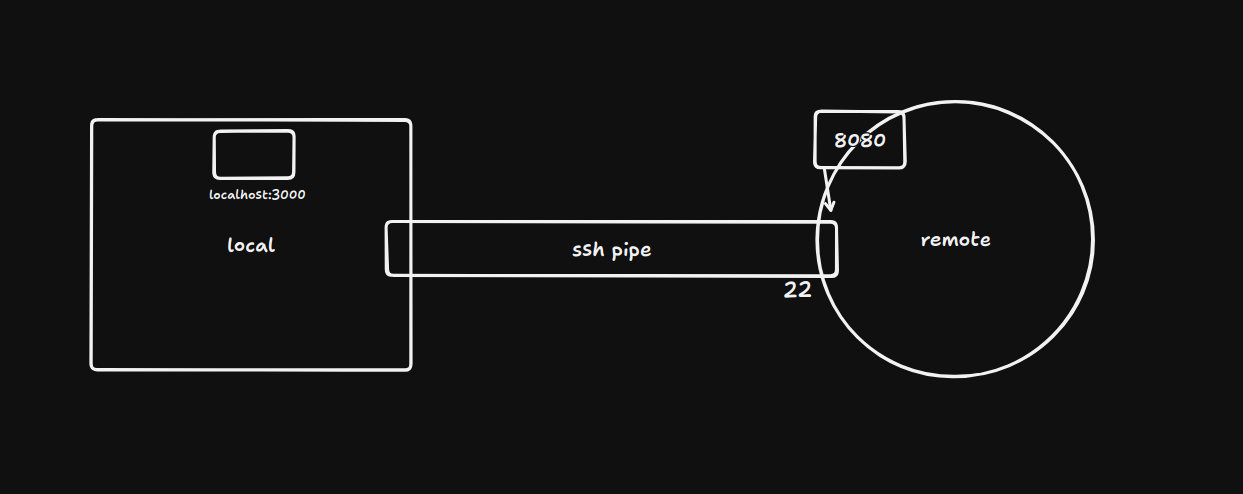
When someone hits ubuntu@132.145.149.218:8080, the remote machine sends that connection back through the SSH pipe to the local machine, the local machine forwards it to the process running at localhost:3000. This way, you just temporarily exposed a port-behind-NAT to the public internet using just an SSH connection.
However, by default, sshd binds the new port only to 127.0.0.1 (localhost - a private IP), even if you specify 132.145.149.218 (remote host's public IP). This is logical since the client SSH'ed in, so sshd doesn't trust it enough to let it start binding ports on it's public interface by default.
To get around that, the SSH server needs to be configured with the GatewayPorts yes setting in sshd_config. GatewayPorts yes removes that restriction and lets the forwarded port bind to all interfaces including the public IP, or you can even specify 0.0.0.0 (all interfaces - loopback (127.0.0.1), the public one (132.145.150.217), maybe others) explicitly in the command.
Tip: you can keep
GatewayPorts noby default and just create a separate subdomainA Recordon your domain address (mine isdemo.arvindparekh.tech). Then you'd create a separate entry in your reverse proxy's (caddy, nginx) config to route all incoming requests on that subdomain to a particular port on the loopback interface (localhost) reserved for remote port forwarding. This avoids the need to expose raw ports publicy. (see image below)
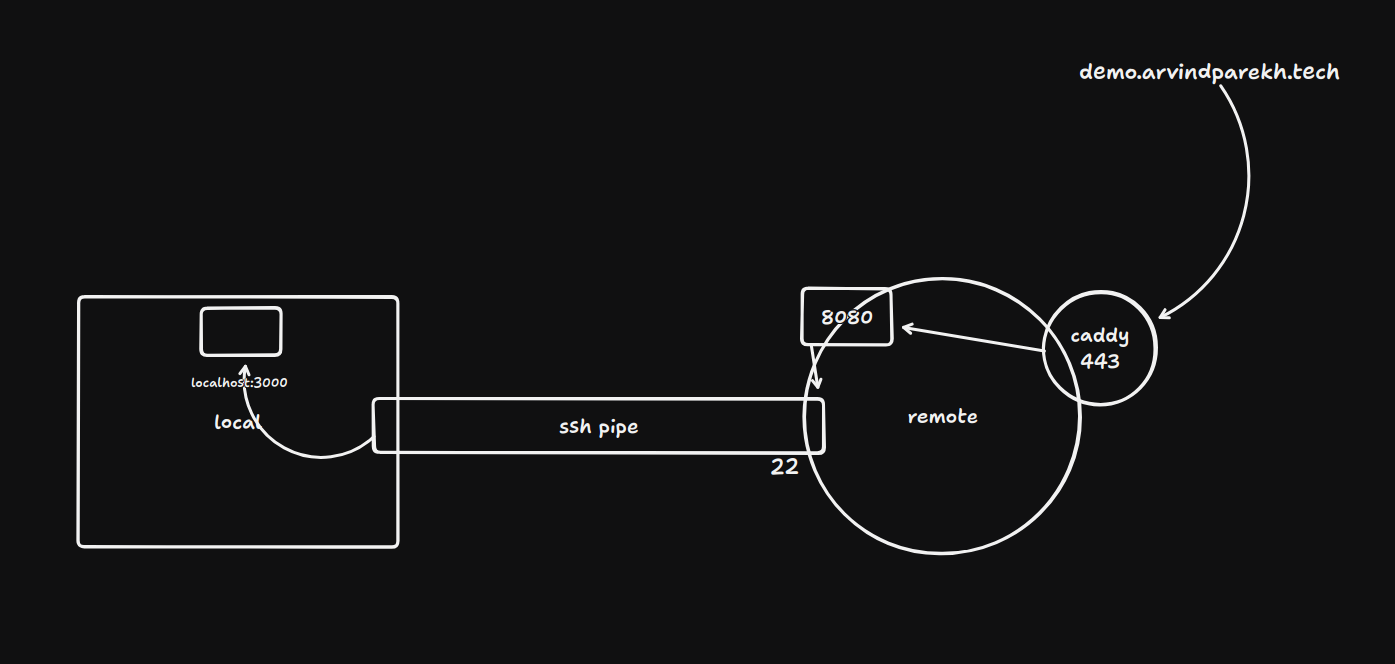
This is essentially how ngrok works, btw.
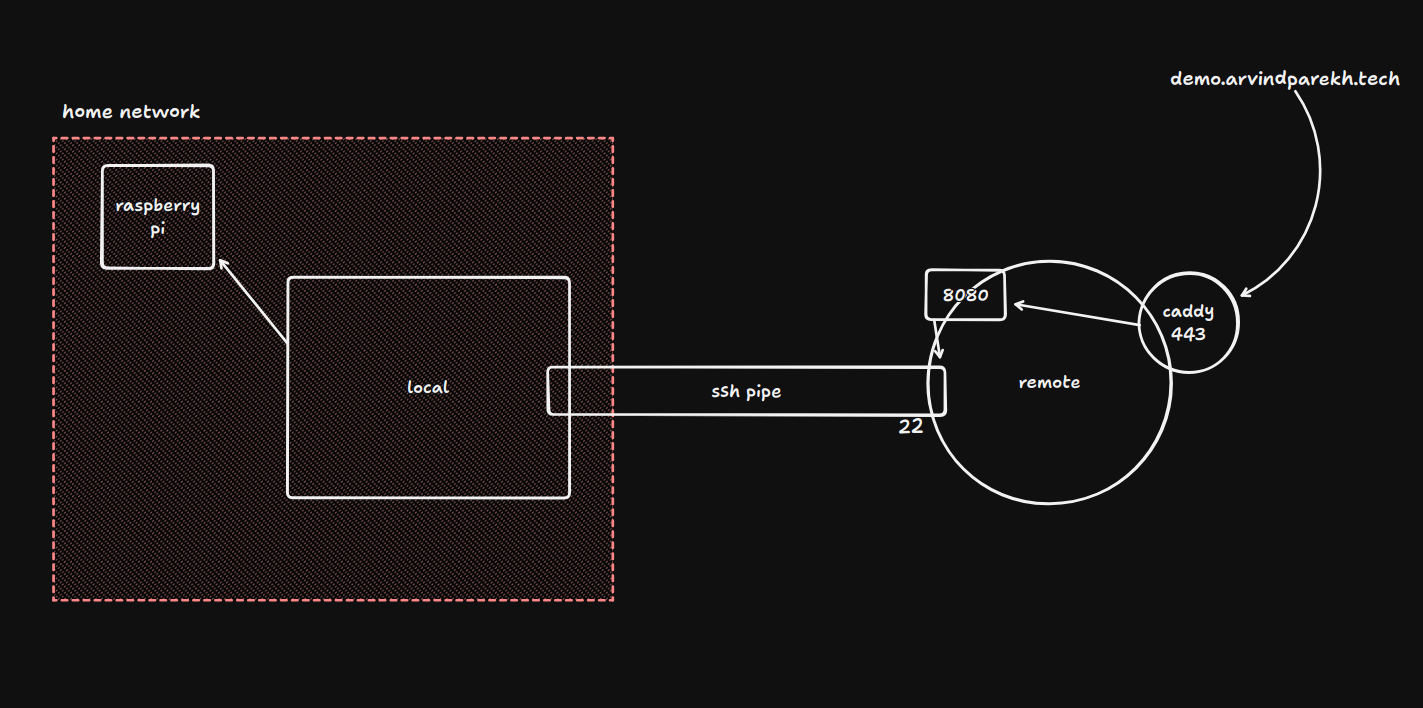
Similar to local port forwarding, remote port forwarding has its own bastion or jump host node. This enables remote forwarding not just to a service running locally on the local machine, but to a home or private network. As you'd have guessed, this time the local machine plays the bastion or the jump node, since it enables exposing ports of a remote (or private) network reachable from the local machine to the outside world through a remote SSH server acting as an ingress gateway.
ssh -R 0.0.0.0:8080:192.168.0.10:80 ubuntu@132.145.149.218
(this require GatewayPorts yes).
or (without requiring to change the default),
ssh -R localhost:8080:192.168.0.10:80 ubuntu@132.145.149.218
The SSH client on the local machines resolves 192.168.0.10 from it's own perspective and connects to it as a final hop (a new TCP connection), with the local machine now acting as the jump host in the outbound direction.
This is also the homelab-exposure pattern: the NAS/Raspberry Pi has no public IP, but your laptop can reach it and if it also has SSH access to a public VPS, one command exposes the NAS to the world.
A couple places where this could be useful
One obvious pattern to use this is for is to run your entire dev environment on the VPS, if you have a resource-limited personal machine. The entire codebase, all dependencies, required containers live on the VPS, and use local port forwarding to access those services from your local machine, without actually running anything on it. The local machine just becomes a UI layer on top of the entire dev environment.
This is the architecture that products like GitHub Codespaces, Gitpod and Railway are selling as a service.
However, port forwarding works great for connecting to services - Redis, database server, APIs that local code needs to talk to, etc. It's less elegant for running the entire dev environment remotely and accessing it locally. You can do it with -L, but now there's a network hop for every file save, every hot reload, every log line is crossing the internet.
The cleaner solution is just entirely developing on the VPS using VS Code Remote SSH (or Cursor, Zed, etc). You edit files directly on the VPS, run everything there, and your local machine becomes just a thin client pushing keystrokes and rendering a UI. VS Code's Remote SSH extension also does port forwarding automatically - it detects when a process on the remote machine binds to a port and offers to forward it to the local machine.
The gotcha here is that it requires an active internet connection to work. No internet, and you won't be able to connect to your remote dev environment, unlike local development, which is always accessible. Also, if your VPS ever goes down, your entire dev environment is gone. Always keep backups.